The central idea
A useful screenshot generator keeps your design editable, your app readable and your next release easy to update.
Start with the screenshot set your app needs
Looking for the best app screenshot generator for your next release? Start with the work you need to finish: presenting the real app clearly, building a consistent sequence and preparing layouts for the stores where you will launch. A polished design should still be easy to change when a caption, feature or device format changes.
AppemUp is an App Store and Google Play screenshot studio for that workflow. Bring your app captures into an editable template, shape the message around them, then review the output for each destination. This guide walks through those decisions using AppemUp, from the first template to the final file review.
Choose a template that gives your interface room
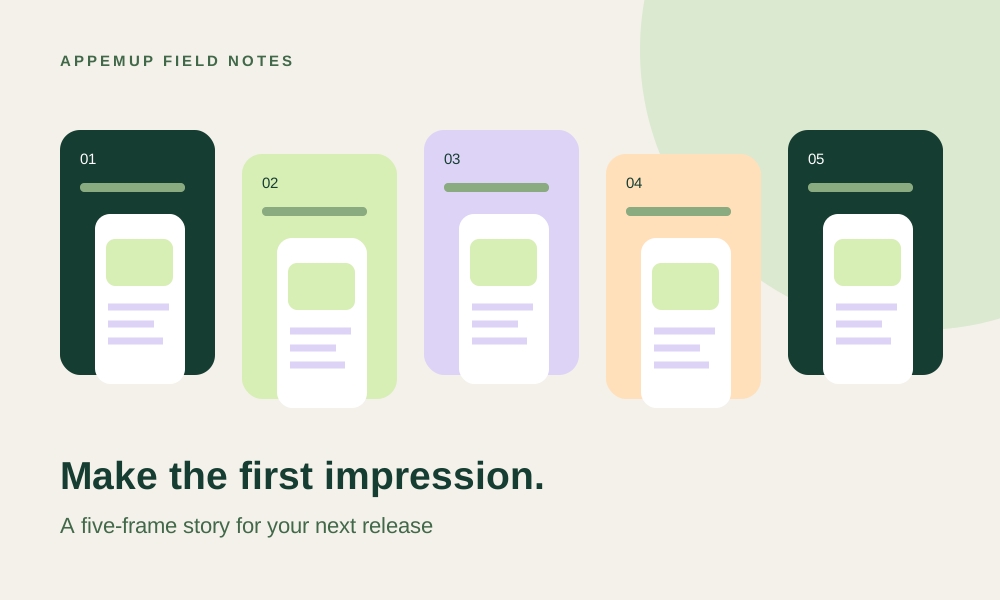
Open the AppemUp template library and look at the whole screenshot sequence. Choose a composition that suits your app: a detailed dashboard needs generous device space, while a simple action can work with a larger headline. Treat sample captions and captures as starting points to replace with your own product story.
For a fitness app, the opening frame could show the next workout with a caption such as “Make time to move.” The following frame might show a weekly plan. For a finance app, an account overview could lead into spending categories. Use the features your app actually provides, and give each frame a distinct purpose.
Make the design your own with editable layers
In AppemUp, captions, backgrounds, decorative shapes and device frames remain separate elements. Rewrite the headline, adjust the accent color, and move the device to give the important part of the interface more space. You can change a supporting element without rebuilding the entire screenshot.
Replace each sample capture with a clean image from your app. Keep customer information and unfinished test states out of the source image. Text inside an uploaded capture belongs to that image; change it in the app and capture it again when necessary. Marketing captions around the device can be edited directly in the studio.
- Replace every sample capture with your own app
- Write one specific benefit per frame
- Keep interface labels readable at listing size
- Use a consistent type style and accent palette
- Keep decorative elements clear of important app content
Adapt the composition for phone, tablet and banners
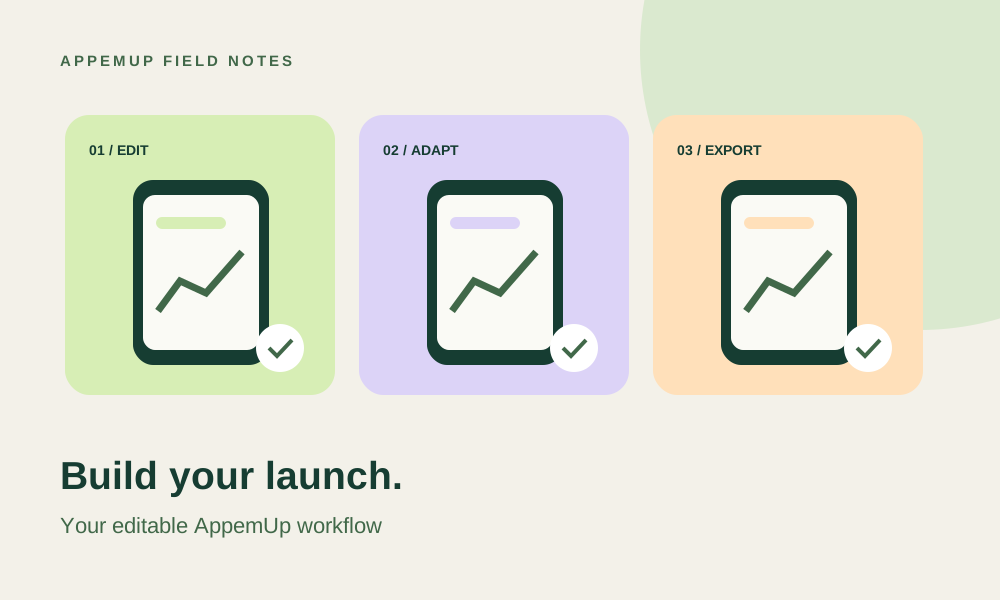
Choose the output you need in the editor and inspect the resulting layout. AppemUp includes phone, tablet and Google Play feature-graphic presets. The screenshot sizes page lists the available dimensions so you can plan the files your release needs.
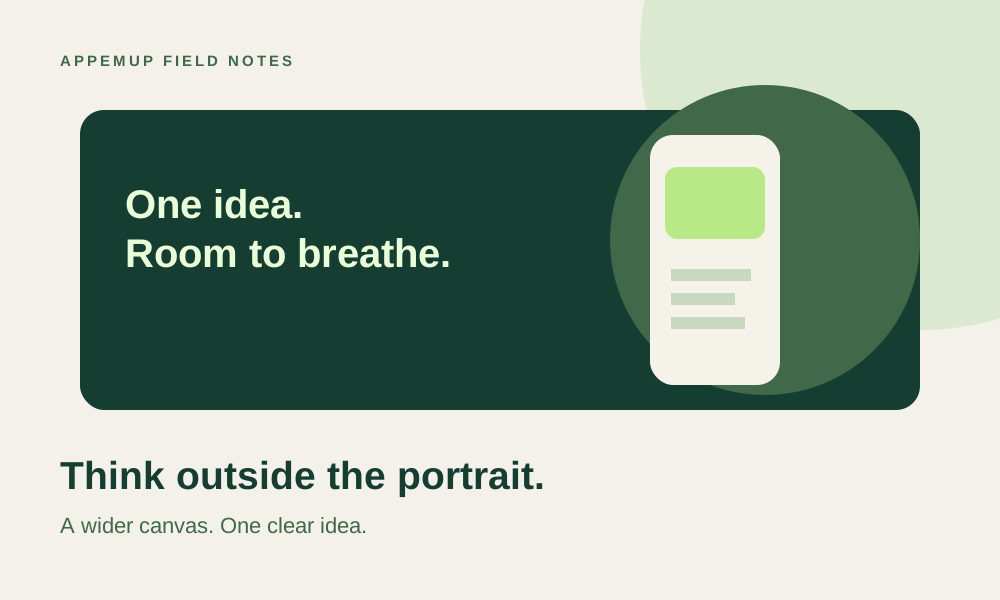
A wide feature graphic has different space from a portrait screenshot. Review device position, headline wrapping and the balance between text and image after switching outputs. For a tablet listing, use a capture of your actual tablet experience. A device frame helps present the product, but cannot turn a phone interface into an accurate tablet interface.
Keep captions clear as the listing evolves
Write captions that describe an outcome someone can recognize in the displayed screen. “Plan the week in one place” is easier to connect to a calendar than a broad promise such as “Transform your life.” Shorten any headline that needs tiny type to fit.
When preparing another language, review the message and its line breaks together. Longer wording may need a wider text box or a different device position. Check that the chosen font contains the required characters, and ask a fluent reviewer to inspect the final images. Keep the visual system consistent while giving each language enough room.
Review the files and prepare for the next release
Before exporting, confirm that your chosen plan covers the outputs you need on the AppemUp pricing page. Review every frame in sequence, then open the downloaded files to inspect sharpness, dimensions and text clipping. A finished canvas is useful only if the exported images communicate just as clearly.
Organize the final files by store, device family, language and position. Keep the source project and a note of the app version shown so the next update starts from a known design. Preview the uploaded sequence in the destination store console before release. Use AppemUp to prepare and refine the creative assets, and the store preview to check the final presentation.
Sources & further reading
Platform guidance checked September 7, 2026. Workflows and examples are AppemUp editorial recommendations; illustrative examples are not measured results.
Ready to try it with your app?
Choose a template, add your captures, and build a screenshot story.
Open the free editor