The central idea
Start with the outcome your app delivers, then use real screens to show how it gets there.
Plan the story before opening the editor
A gallery of unrelated features asks visitors to work out the value themselves. Instead, choose one audience and one job your app helps them finish. For a meal planner, that might be helping a busy parent decide what to cook and leave the supermarket with everything they need.
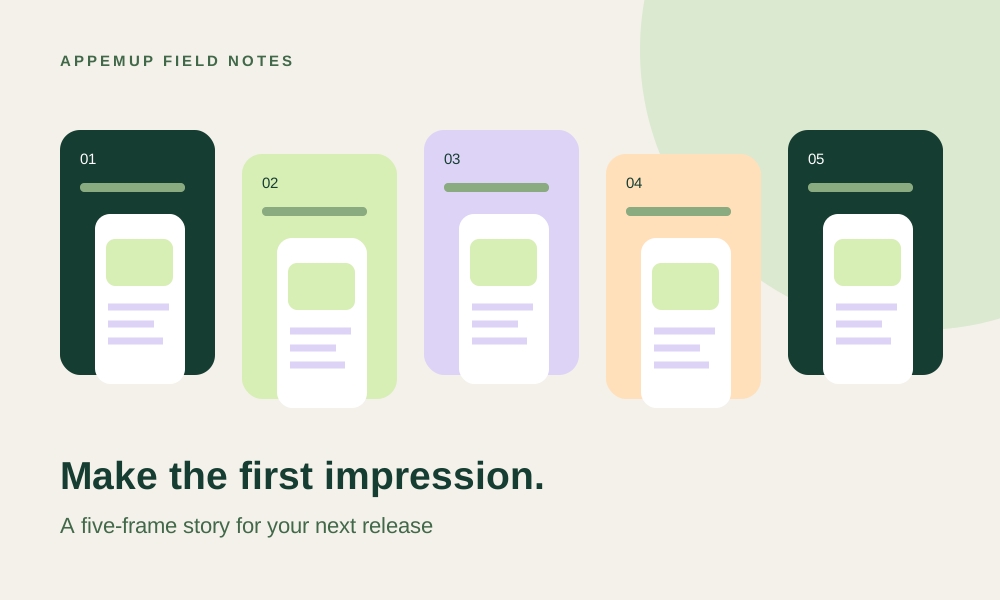
Write a short sequence on paper: choose dinner, build the grocery list, and reuse a favorite plan. This is an editorial framework, not a claim that every app needs the same number of screenshots. Each image should make sense independently as well as in sequence.
Give the first frame one clear job
Use your opening frame to answer two questions: what does this app do, and why would I want it? ‘Dinner planned. Shopping sorted.’ is more concrete than ‘The ultimate lifestyle experience.’ Put the relevant interface underneath that promise so visitors can connect the words to the product.
Apple notes that early screenshots can appear in search results. Keep your key message readable at thumbnail size. Shrink your design to the width of an actual store listing and check whether the main benefit still survives.
Build a visual system that supports the app
Choose one headline style, a restrained palette, and consistent device placement. Give the interface room to breathe. Decorative shapes can establish a mood, but the useful part of the screen should remain easy to see.
Use captures from the current app with representative sample data. A mockup should frame an experience that exists. Avoid invented awards, fabricated ratings, and screens that promise functionality you have not shipped.
- One benefit and one focal point per frame
- Readable text on both light and dark backgrounds
- Consistent margins and device scale across the sequence
- No private customer data in app captures
Create, export, and inspect the whole set
In AppemUp, start with a template close to your app’s visual character, replace the captures, and rewrite every caption for your audience. Review the full sequence before creating localized variants; otherwise an unclear story multiplies into every language.
Export for the intended store and device, then inspect the resulting images outside the editor. Check edges, line wraps, and any labels inside the app. Finally, preview the uploaded listing in the store console. A valid file is only the beginning; the listing also needs to communicate clearly.
Sources & further reading
Platform guidance checked September 7, 2026. Workflows and examples are AppemUp editorial recommendations; illustrative examples are not measured results.
Ready to try it with your app?
Choose a template, add your captures, and build a screenshot story.
Open the free editor