The central idea
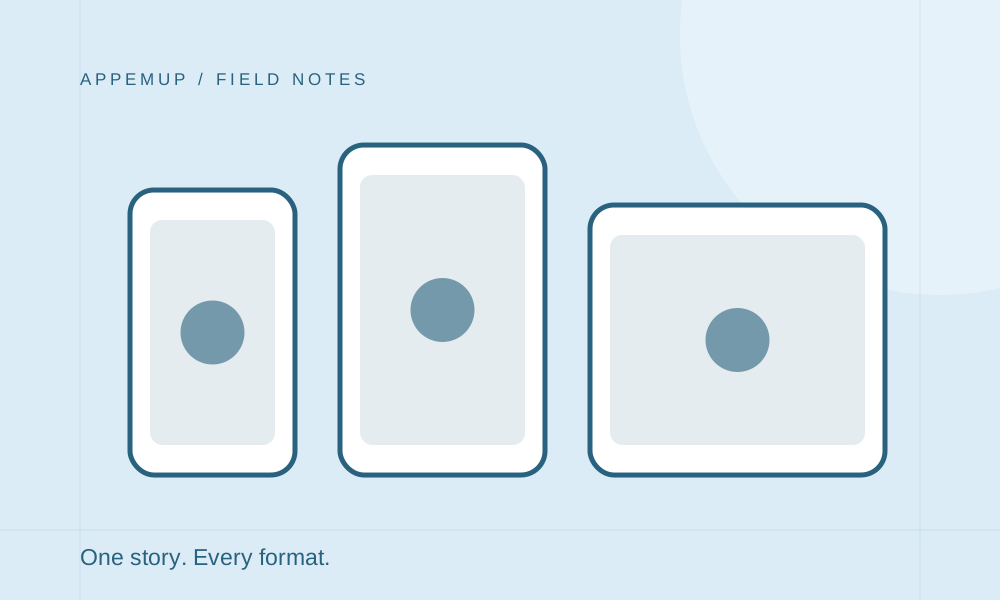
Treat device sizes and languages as layouts to review, not files to resize blindly.
Start from the destination requirements
Before designing, list the stores, device families, orientations, and languages you intend to support. Apple’s screenshot specifications vary by display and device family. Google Play has its own preview-asset requirements and recommendations. Check the linked official specifications when preparing a submission; an old pixel-size cheat sheet can become stale.
Create an export inventory for the release. Give every planned output a store, device family, locale, and screenshot position. This makes missing assets visible before you upload, and helps another teammate reproduce the package.
Keep source captures sharp and undistorted
Capture the app at a useful native resolution and keep an untouched source copy. Repeated compression and upscaling can soften small interface labels. Check the screen’s aspect ratio before placing it inside a device frame so circles remain circular and text is not stretched.
Design around the destination canvas. A taller format may need a different headline break or device position. Simply stretching a finished poster can make the app smaller and the empty space larger without improving readability.
Review every localized layout
Translate the message and review the experience it describes. A grocery-list example may need different units, food names, or date formatting in another market. Only show a localized app interface if the shipped app supports that experience.
Text lengths vary. Leave room for longer captions, review font coverage, and check directionality where relevant. Have a fluent reviewer look at the exported images rather than approving a spreadsheet of strings alone. The meaning can be correct while the line break makes the image awkward.
- Captions match the selected language
- Fonts contain every required character
- No clipped text or overlapping labels
- Sample dates, currencies, and units are appropriate
- The shown interface matches the shipped app
Inspect the actual files before uploading
Open each export at full size to check sharpness and at listing size to check communication. Confirm the dimensions and file format against the current store requirements, then check that the numbered sequence is complete. A filename such as ios-phone-en-01.png is easier to audit than final-final-2.png.
Keep a release folder with the final exports, source project, and a short note about the app version represented. After uploading, inspect the store console’s preview for ordering and device coverage. Use AppemUp’s editor and templates to prepare the assets, and the destination console as the final submission check.
Sources & further reading
Platform guidance checked September 7, 2026. Workflows and examples are AppemUp editorial recommendations; illustrative examples are not measured results.
Ready to try it with your app?
Choose a template, add your captures, and build a screenshot story.
Open the free editor